Sign-in, passwords and two-factor authentication
Reset or change your password, why sign-in can be locked, turn on two-factor authentication and manage your devices.
Forgot your password
On the sign-in page click Forgot password?, enter your e-mail and click Send reset link. Only the newest link works.
For your privacy the page always says a link was sent — if nothing arrives, check spam and make sure you used the address you registered with.
Change your password
In Profile, under Change password, enter your current password and the new one twice, then click Update password.
Accounts that only ever used Google sign-in have no password yet: use Forgot password? on the sign-in page to set one.
"Too many failed attempts"
After several wrong passwords, sign-in is paused for a while: "Too many failed attempts. Try again in N minutes". Wait and try again, or reset your password.
Turn on two-factor authentication
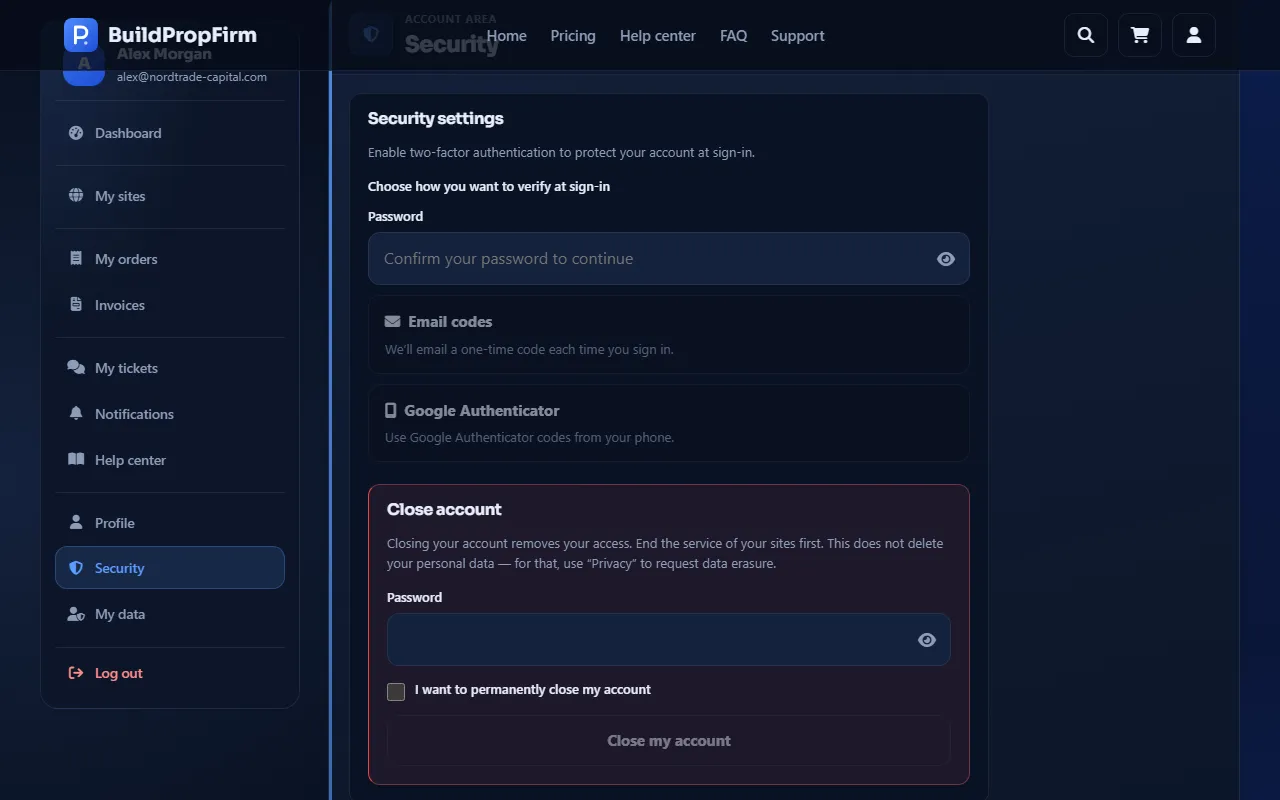
Open Security and choose how to verify at sign-in:
- Email codes — we e-mail a one-time code each time you sign in.
- Google Authenticator — scan the QR code (or type the manual key) in the app and enter the code it shows.
At sign-in, enter the code and click Verify and sign in. Tick Trust this device for 30 days to skip the code on that browser — never on a shared computer.
Recovery codes
Keep your recovery codes somewhere safe outside your phone. Each code works once instead of a 2FA code, for example if you lose your phone. Generate new recovery codes replaces the whole set. If you lost both your authenticator and your recovery codes, contact support from your registered e-mail address.
Sessions and devices
The Security page lists your active sessions and trusted devices. End any session you don't recognise, then change your password and turn on two-factor authentication.