Order your prop firm site
The order form on Start, field by field: your firm, company and contacts, look, features, languages and the setup invoice.
Open the order form
Go to Start. If you are signed out you are asked to Sign in or Create account first. If several plans are offered, pick one under Plan — each shows its monthly fee and its price per active account.
You can have at most 3 unpaid site orders. If you see Pay or cancel your unpaid site orders first, finish or cancel one under My sites.
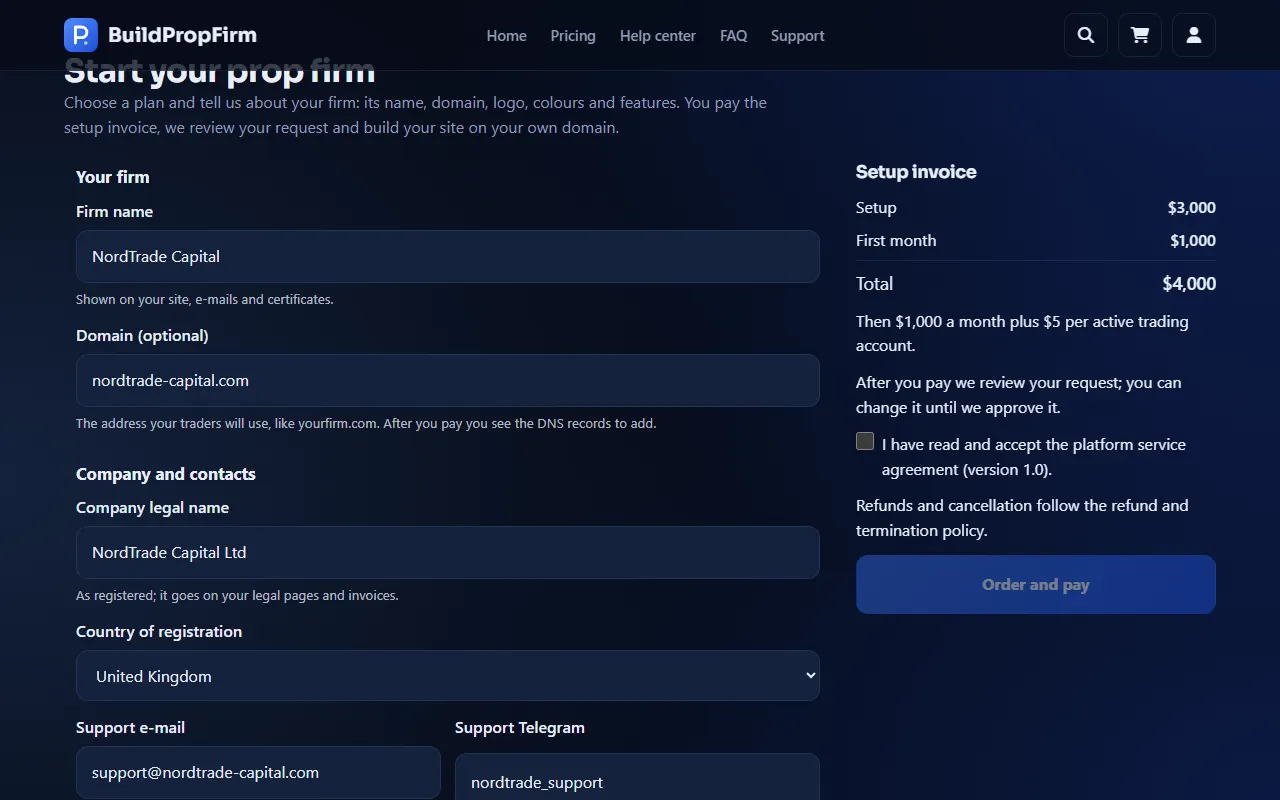
Your firm, company and contacts
- Firm name (2–80 characters) — shown on your site, its e-mails and certificates.
- Domain — the address your traders will use, like
yourfirm.com. After you pay you see the DNS records to add. - Company legal name and Country of registration — as registered; they go on your legal pages and invoices.
- Support e-mail and Support Telegram — where your traders reach you. The Telegram username is 5–32 letters, digits or underscores, without the @.
- Admin e-mail — filled in with your address. It becomes your site's first admin and receives the link to set a password.
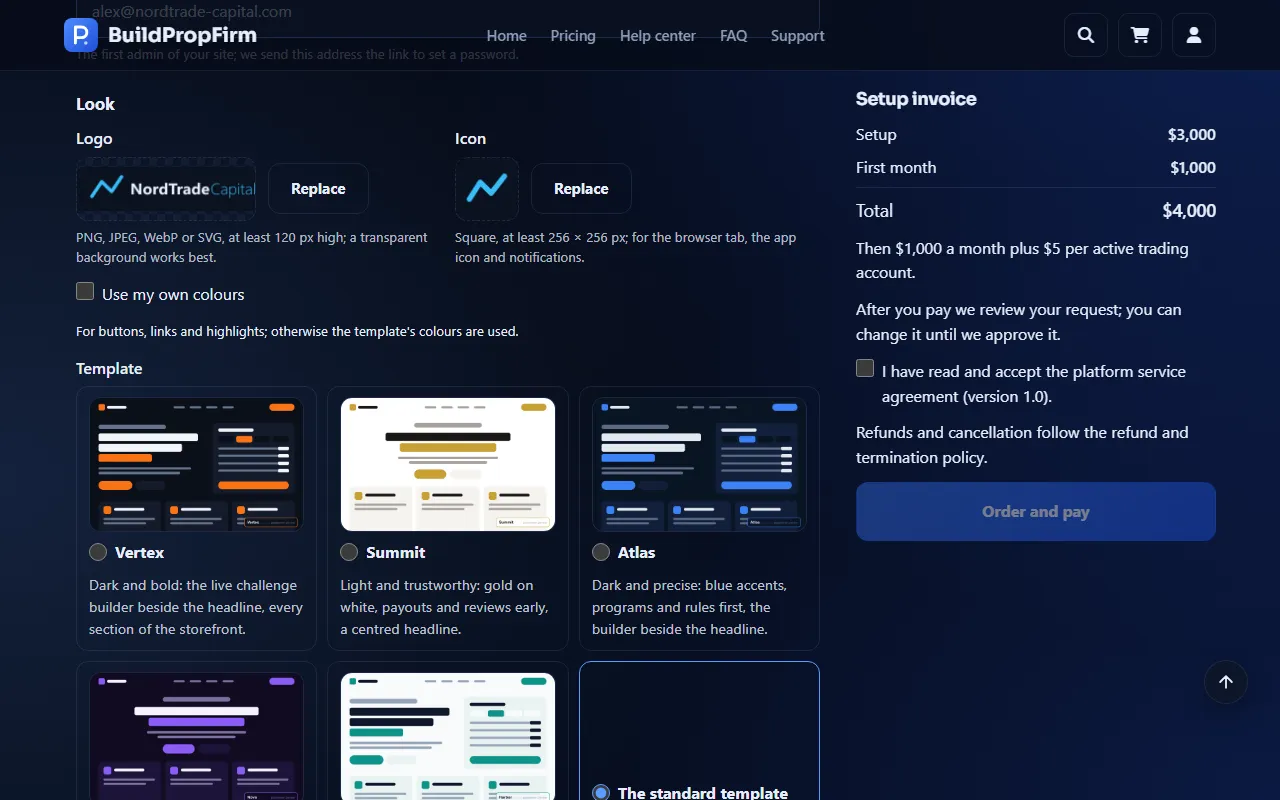
Look: logo, icon, colours and template
- Logo — PNG, JPEG, WebP or SVG, up to 5 MB and at least 120 px high. Click Choose a file, or Replace to change it.
- Icon — square, at least 256 × 256 px; used for the browser tab, the app icon and notifications.
- Use my own colours — set a Main colour and a Second colour; otherwise the template's colours are used.
- Template — Vertex, Summit, Atlas, Nova, Harbor or the standard template. You can preview them on the demo.
Features and languages
Features lists what your site starts with, by group. Everything your plan includes is on by default; click a feature to leave it out. Your admin can switch features on and off later.
Under Languages choose the Main language and any More languages. The form tells you how many languages are included; each extra language is a one-time price, added to the setup invoice.
Check the setup invoice and order
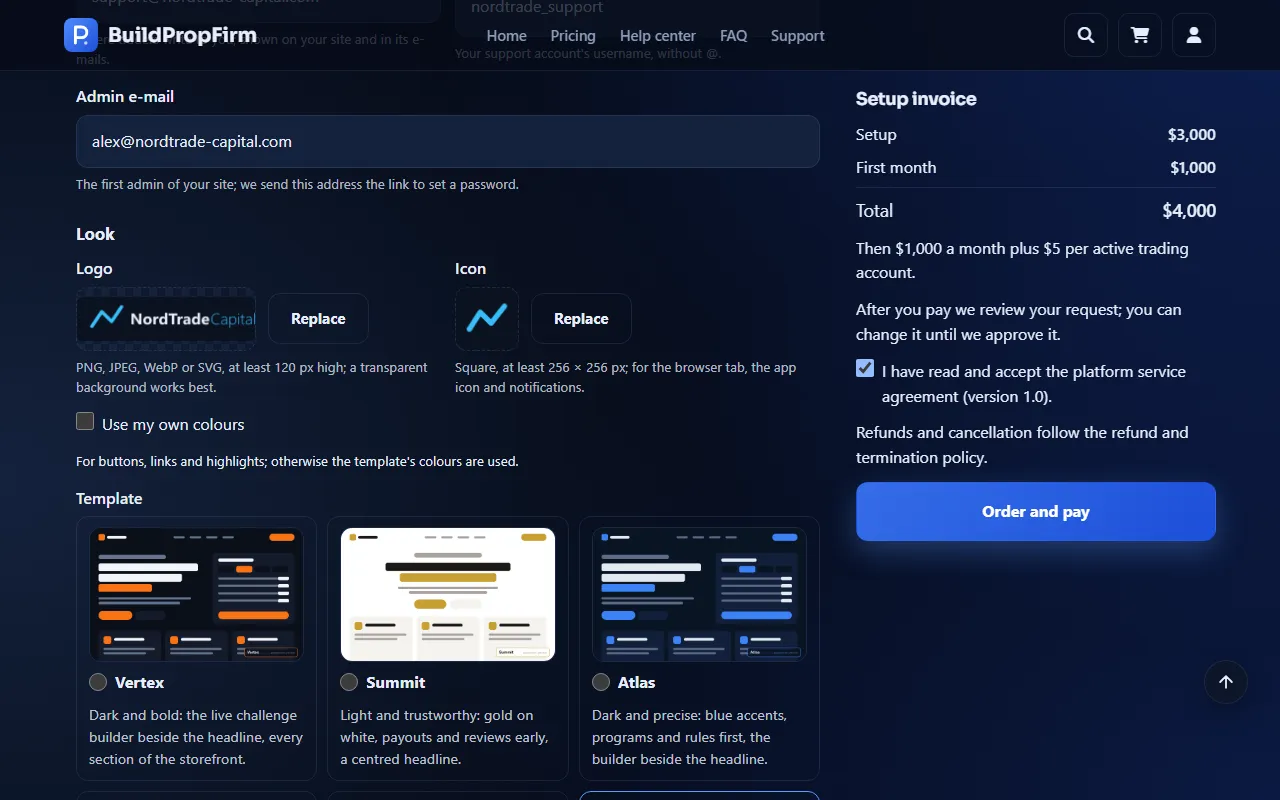
The Setup invoice summary shows the lines Setup, First month, any Extra languages and the Total, and below it what you will pay each month afterwards.
Tick I have read and accept the platform service agreement and click Order and pay. You go straight to the crypto payment page.
What must be filled in before review
You can pay before everything is ready, but your request goes to review only when it has the firm name, domain, company legal name, country, support e-mail, support Telegram, admin e-mail, logo and icon. Anything missing is listed on your site's page as Still needed before review — add it there.
The order form has no broker fields: after ordering, tell us your broker in a ticket — see Choose your broker and MetaTrader platform.
Changed your mind before paying? Open the site under My sites and click Cancel this order. An unpaid setup invoice is cancelled automatically after 30 days and the domain becomes free again.