Open your site's admin and launch
Set your admin password, find your admin panel, work through the opening checklist and see the demo.
Set your admin password
When your site is up, the Admin e-mail from your order — your site's first admin — receives a link to set a password. Use the latest e-mail if more than one arrived.
Find your admin panel
Your admin panel is at
admin.followed by your domain — for exampleadmin.yourfirm.com. Your site's page under My sites shows the domain and has an Open the site button.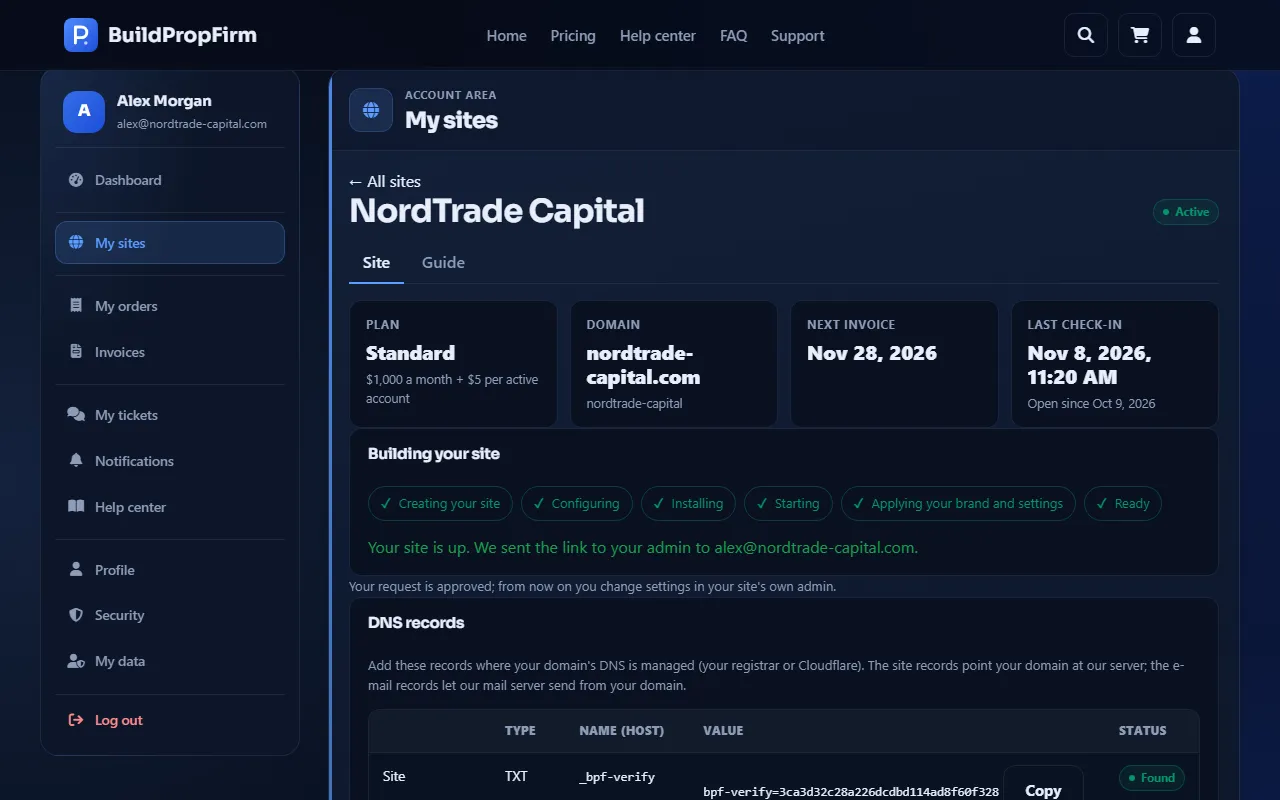
Work through the opening checklist
In your admin panel, the opening checklist is under Platform & launch. It walks you through what to check and set before your traders arrive. Your site's page in your account shows how much of it is done.
The getting-started guide explains every step in full.
Look at the demo
The demo page lets you Open the demo site and look around, shows screenshots of the admin panel, previews of the templates and the prices. Nothing you do on the demo site is a real order.
Changing settings later
After approval, your brand, features, contacts and other settings are changed in your site's own admin, not in your Build Prop Firm account. Languages beyond your plan are added from your account — see Add languages.